IPTV on Apple CarPlay
Bring your own IPTV playlist into the car. AutoPlay puts your live channels, films and series on the CarPlay home screen and plays them through the car. In cars that support video in CarPlay, the picture shows on the car display too.
Set up IPTV in CarPlay in 4 steps
- 1
Install AutoPlay
Get AutoPlay from the App Store on your iPhone (iOS 17 or later). No box, adapter or jailbreak.
- 2
Add your IPTV playlist
Paste the M3U or M3U8 link from your provider, sign in with Xtream Codes (server, username, password) or scan the playlist QR code.
- 3
Connect to CarPlay
Plug in the cable or use wireless CarPlay. AutoPlay appears on the CarPlay home screen with Home, Favourites, Recent and Mirror.
- 4
Pick a channel
Choose a live channel, film or episode on the car display. In cars that support video in CarPlay, tap the TV button in Now Playing once and the picture moves to the car display.
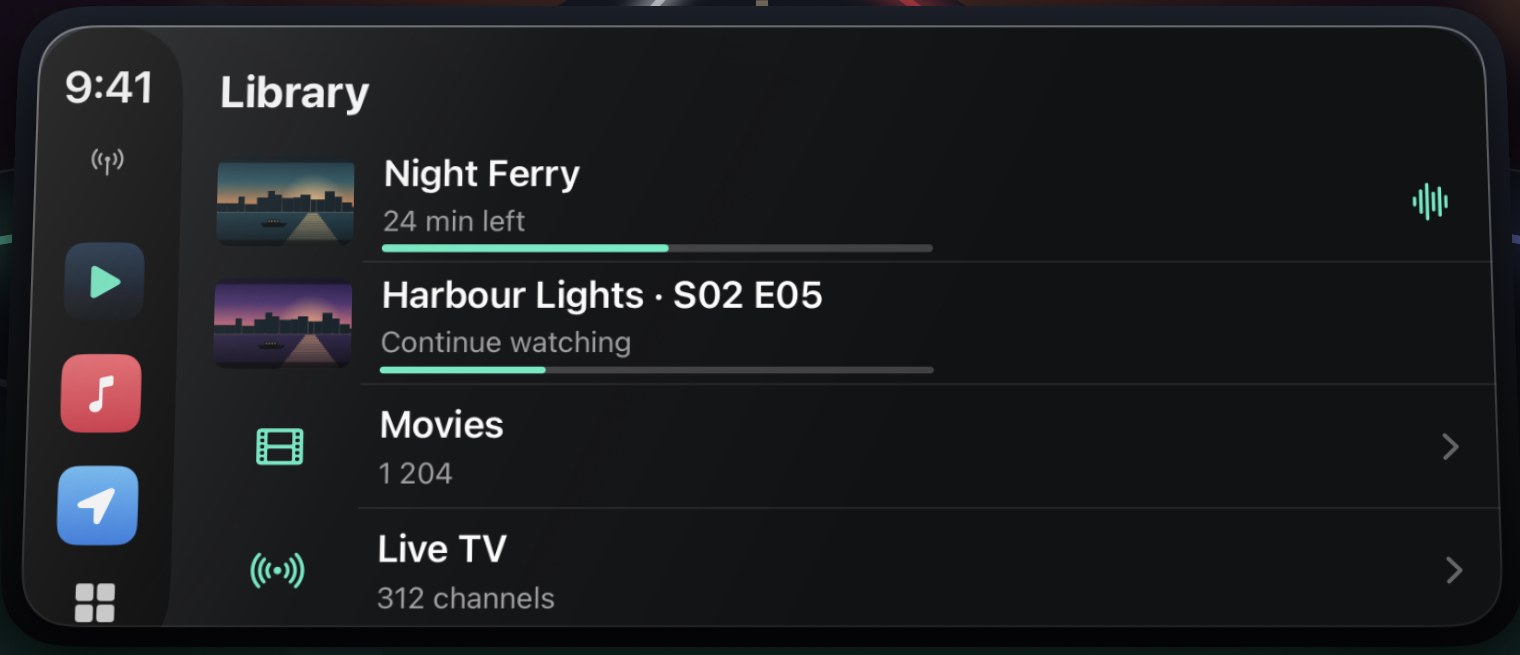
Your playlist, on the car display
Channels sorted by group with logos, films and series with posters, favourites and recently played. Resume where you stopped; the next episode starts on its own.
What works in your car
Every CarPlay car
- Your library on the car display
- Sound through the car speakers
- Play, pause, back and forward 10 seconds in Now Playing
- The picture on the iPhone, AirPlay to a TV
Cars that support video in CarPlay
- The picture on the car display: tap the TV button in Now Playing once
- Your whole iPhone screen mirrored, Smooth (720p) or Sharp (1080p)
- The next titles follow on their own
Playback in the car and screen mirroring are part of AutoPlay Premium (weekly, yearly or a one-time lifetime purchase). Never watch while driving.
Why AutoPlay for IPTV in the car
- M3U and M3U8 links, Xtream Codes logins and playlist QR codes
- Live TV, films and series, sorted by group with logos and posters
- Favourites, recently played and resume points
- MKV, AVI, TS, MP4, MOV and HLS, including HEVC; audio tracks and subtitles
- No account; your sources and logins stay on the iPhone
- Made for breaks: charging, waiting, camping
Questions
Can I watch IPTV on Apple CarPlay?
Yes, with AutoPlay. Add an M3U or M3U8 link or an Xtream Codes login, and your channels, films and series appear on the CarPlay home screen. The sound plays through the car in every CarPlay car; the picture shows on the car display in cars that support video in CarPlay.
Do I need an adapter or a box for IPTV in CarPlay?
No. AutoPlay is an iPhone app that works with the car's own CarPlay, wired or wireless. No adapter, Android box or jailbreak.
Which IPTV formats does AutoPlay support?
M3U and M3U8 playlist links, Xtream Codes logins (live TV, films and series) and playlist QR codes. Streams in HLS, TS, MP4, MKV and more, including HEVC.
Which cars show the IPTV picture on the display?
Cars that support video in CarPlay, a newer Apple feature: CarPlay's Now Playing screen shows a TV button there. In other CarPlay cars you browse on the car display and listen, while the picture stays on the iPhone.
Does AutoPlay come with IPTV channels?
No. AutoPlay is a player only. It includes no channels, playlists or subscriptions; you add sources you already have the right to use.
Is AutoPlay free?
The download is free, with the iPhone player and ads. AutoPlay Premium (weekly, yearly or a one-time lifetime purchase) unlocks playback in the car and screen mirroring, and removes ads.
Can I watch IPTV while driving?
No. Never watch while driving. While you drive, keep listening; watch during breaks such as charging the car or waiting.

Your films, series and live TV, in the car.
Free download. Premium unlocks playback in the car and screen mirroring.